The call begins, your face looks dark, the window behind you is bright, and the laptop camera points up from the table. A new webcam might improve the picture, but it will not automatically fix the room. The most useful approach is to identify the weak part of the setup before buying another device.
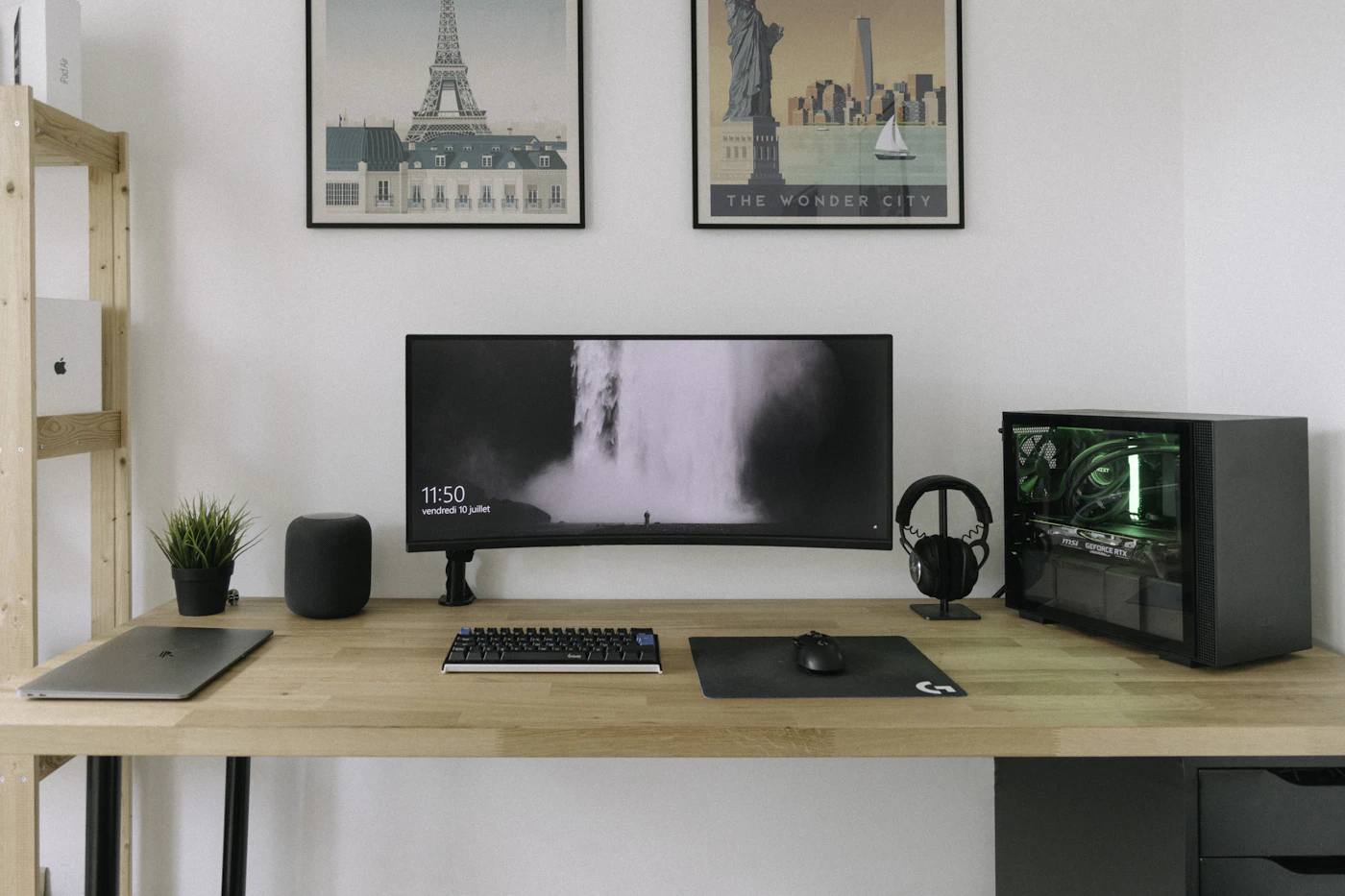
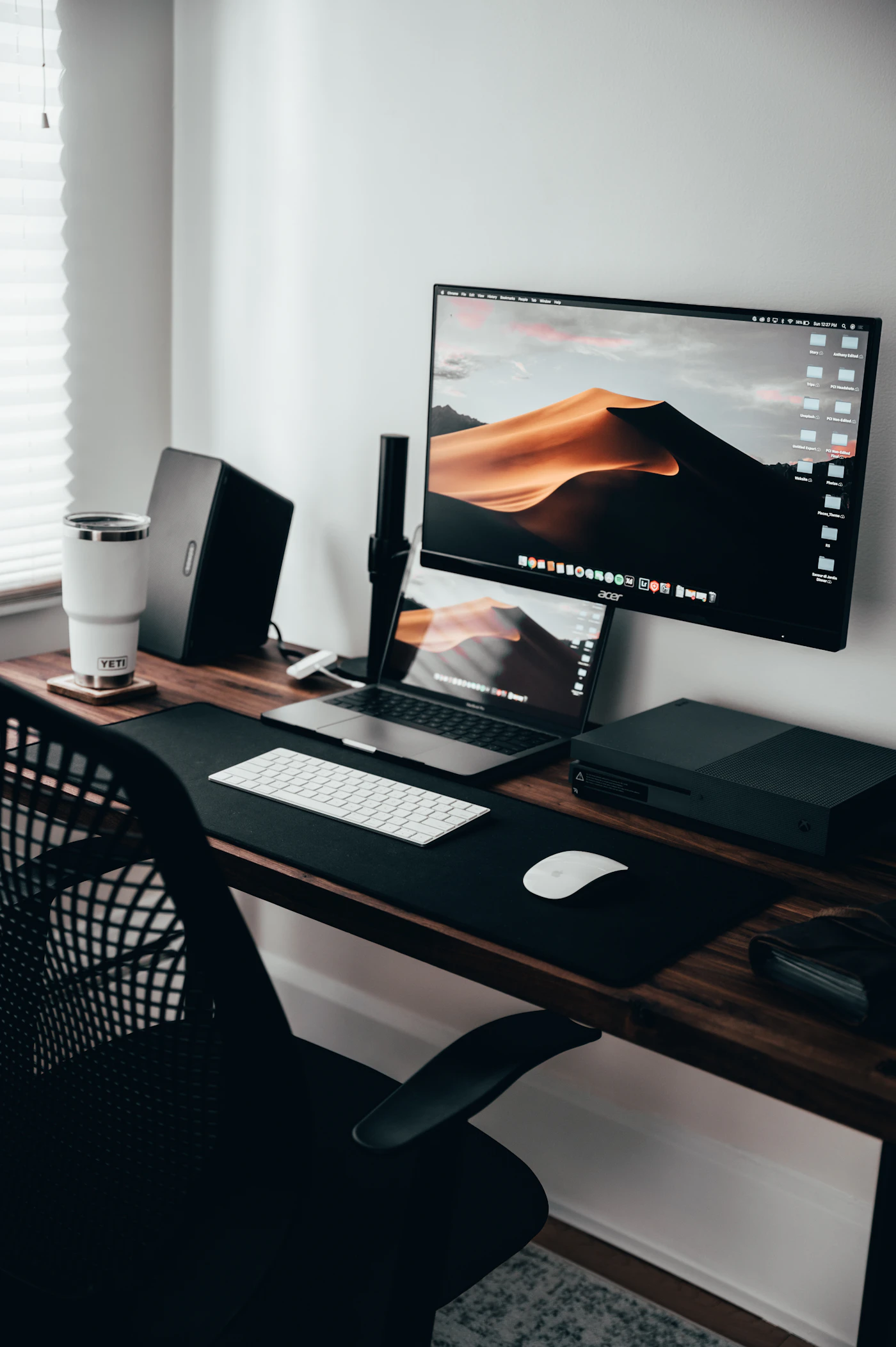
Imagine working from a spare bedroom with a laptop and separate monitor. You look at the large screen while the laptop camera sits off to one side. Colleagues see you looking away throughout the conversation. An external camera near the monitor could help with that specific problem, even if the laptop camera’s resolution is adequate.
Move the light before changing the camera
Open the camera preview at the time of day when you usually call. Look at what changes when you turn the desk or close a blind. A bright window behind your head makes the exposure problem harder. A window in front of you or soft lighting near the screen can produce a more useful starting point.
Try the lamps already in the room. Avoid placing a small harsh light very close to your face, and keep the setup comfortable for ordinary work. If calls happen after sunset, make the evening arrangement repeatable. A camera chosen in morning daylight may behave differently under a dim ceiling lamp.
Automatic light correction is useful, but it has limits. A marketing photograph cannot reproduce the contrast and color of your room. Improve placement first, then assess whether the existing camera still produces an unacceptable picture. That order can save a purchase or make a later purchase work better.
Put the lens near where you look
Raise or position the camera to produce a natural conversational view without forcing you into an awkward sitting position. The ideal location also allows you to see the people on screen. If your laptop camera sits below a large monitor, an external webcam on the monitor can make eye-line alignment easier.
Check the proposed mount. A thin laptop lid, curved monitor, or very thick bezel may not suit every clip. If you want a small tripod, verify a compatible mount rather than assuming one is included. Measure cable reach to the computer or hub while allowing enough slack for adjustment.
The Logitech Brio 500 setup document shows its attached USB-C cable, privacy shutter, and mount design. Those practical details belong in a buying comparison alongside image specifications. A convenient mount and the correct connector can matter more than a feature you rarely use.
Choose resolution for the call platform
A higher-resolution camera does not guarantee the other participants see that resolution. Application settings, network conditions, computer resources, and service limits can affect the transmitted image. A camera can also provide several different resolution and frame-rate combinations, rather than its maximum on every setting.
Logitech’s Brio 500 resolution support article states support for Full HD video at 30 frames per second and explains why applications may show lower resolution. Read that guidance before treating a camera preview as proof of what arrives at the other end.
For ordinary meetings, stable framing and clear lighting often deserve priority over chasing a higher pixel count. Streaming, recorded demonstrations, and detailed product presentations may have different requirements. Buy for the output you actually create, rather than for a specification disconnected from the application.
Do not overlook sound
Listeners may tolerate a modest picture more readily than unclear speech. Test the microphone you already use with a short recording. Listen for keyboard noise, echo, and changing volume when you turn toward another screen. A headset or separate microphone can address problems a camera upgrade will leave untouched.
Built-in webcam microphones are convenient, but distance and room acoustics still matter. Do not assume noise-reduction wording means every background sound disappears. Select the intended microphone in the call application’s settings; connecting a new camera can introduce another audio choice.
If two people work in the room, think about their microphones and speakers together. A keyboard that sounds acceptable to you may be prominent on somebody else’s call. Arrange the shared workspace around typical call times before adding equipment that increases clutter.
Privacy and software are purchase requirements
A physical shutter makes it easy to cover the lens between calls. It does not necessarily disable the microphone or replace permission settings. Learn the application’s camera and audio controls, and check the device’s activity indication. Keep software and firmware up to date through the manufacturer’s current instructions.
Optional framing or presentation functions may depend on software. On a managed work computer, confirm whether installation is allowed. If you plan to demonstrate handwritten notes by tilting a camera toward the desk, check the relevant mode’s requirements and your table arrangement before paying for it.
Read the current Brio 500 listing or other manufacturer’s page for the exact model and operating-system support. Similar names can refer to different cameras, including business and consumer versions with different accessories or terms.
A purchase that solves one clear problem
Keep the existing camera if better positioning and light make it adequate. Buy an external webcam when you need a lens near the monitor, a more flexible mount, or documented features your current device lacks. Include any adapter or tripod in the total cost.
During the return window, test your normal meeting application in daytime and evening conditions. Ask a colleague or household member how the received picture and sound look, and check waking after sleep. For the display position, see our small-desk monitor guide. For a calmer shared room, read mechanical keyboard buying advice.
EXPLORE THE OPTIONS
Products worth a closer look
Compare the current specifications, local availability, and returns policy before deciding.
Logitech Brio 500
Best fit: Positioning a camera near an external monitor; Home meetings with a physical lens cover.
Why consider it: Separate camera placement can improve conversational framing; Physical shutter makes lens covering straightforward.
The tradeoff: Meeting apps and networks can reduce transmitted resolution; USB connector compatibility must be checked; An external camera does not fix poor room lighting or audio.
Sources & editorial notes
Manufacturer information checked on October 4, 2026. Features can vary by model and country. Confirm the exact version before purchasing. Lifestyle photos illustrate the setting; they do not document product testing.
- logitech.com — reference information
- logitech.com — reference information
- support.logi.com — reference information